
Communicating with our 24/7 team is now easier and more efficient! We've updated the notes section to a centralized message center for clearer communication, making it easier to read, respond to, and update messages. You can even resolve an issue and review how our 24/7 team handled it.
📌 What’s New
-
Transformed the old notes section into a unified Message Center
-
Clear icons to highlight unread messages and stay history updates
-
Structured threads for sending, updating, replying to, resolving, and reopening messages
-
Ability to review how our team handled resolved issues
To learn more, read on!
🛏️ Stay History
Access the Stay History tab in the Message Center to see every step of your reservation, such as:
-
Stay created
-
Reservation confirmed
-
Check‑in completed
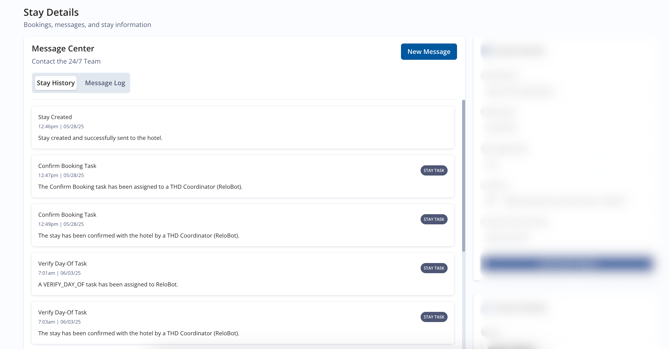
Pro tip: Always review Stay History before reaching out—your question may already be answered!
✉️ Send a New Message
-
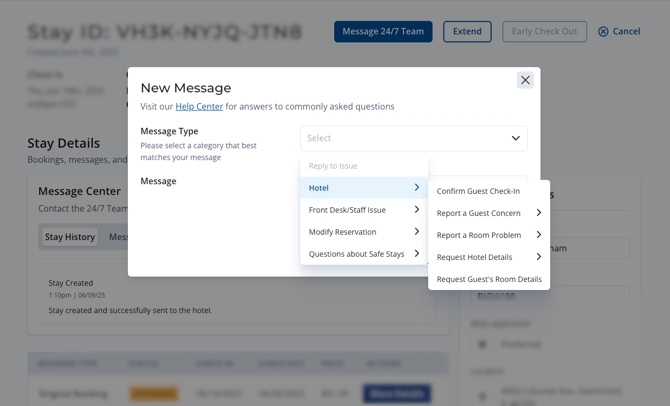
Click Message 24/7 Team or New Message
-
Choose a Primary and (if applicable) Secondary or Tertiary message type
-
Type your message in the text box
-
Click Create Message

Note: The old Contact 24/7 Team button has been replaced by Message 24/7 Team.
🔄 Update an Existing Message
-
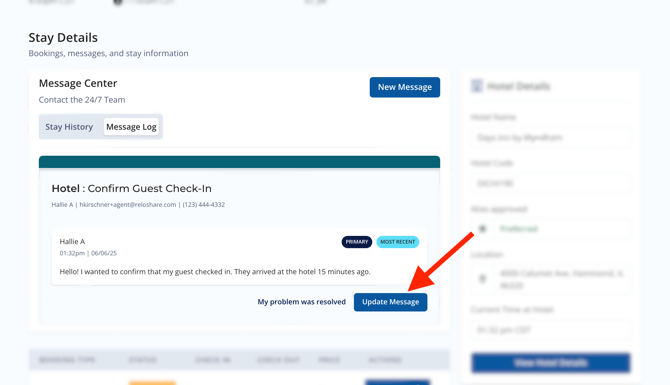
Locate your message in the thread
-
Click Update Message
-
Enter your additional information in the new text box
-
Click Update
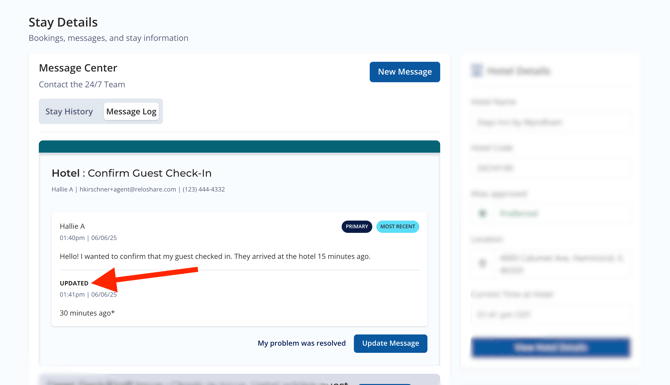
Your update will appear labeled as "Updated" in the thread.
↩️ Reply to a Message
-
Find the latest reply from our 24/7 team
-
Click Reply below their response
-
Enter your follow-up question or comment
-
Click Send
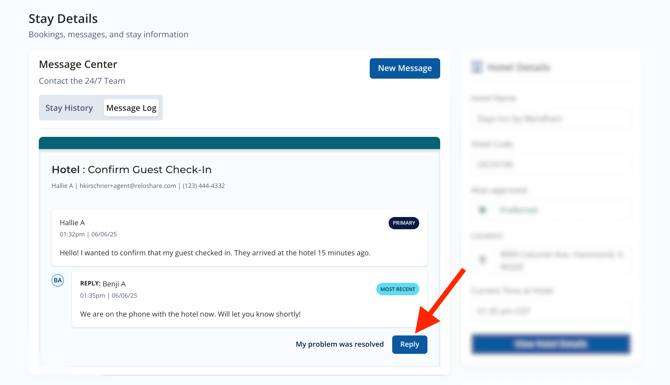
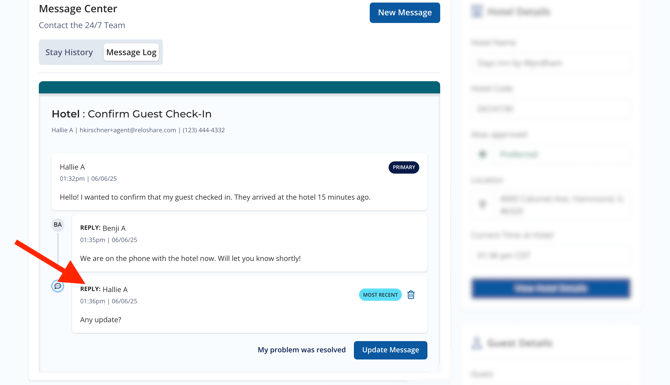
Replies are marked as "Reply" in the conversation timeline.
✅ Resolve a Problem
Once your issue is handled:
-
Click My problem was resolved
-
This notifies our team that no further action is needed
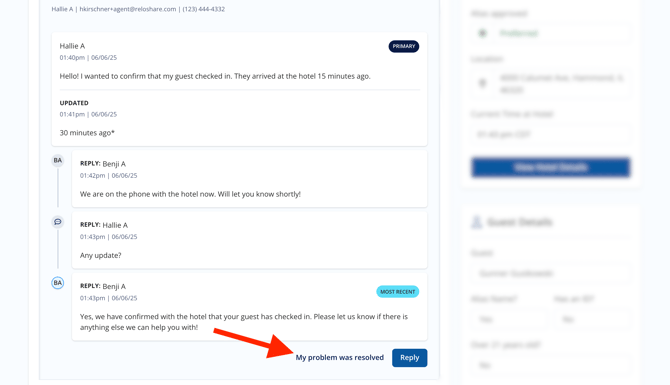
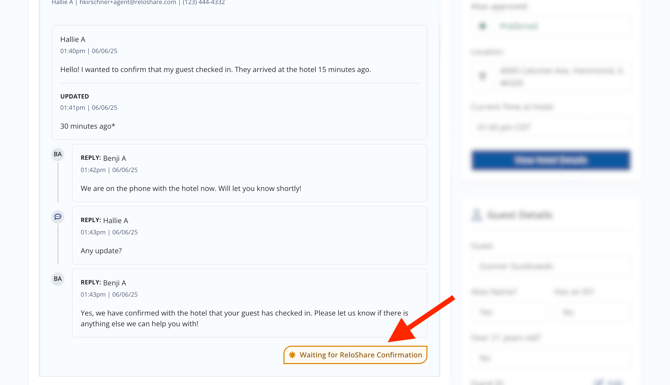
Our team will then confirm the resolution and move the thread to the Resolved state.
🔄 Reopen a Problem
If your issue resurfaces:
-
Click Change to Open on the resolved thread
-
Use the Reply button to continue the conversation
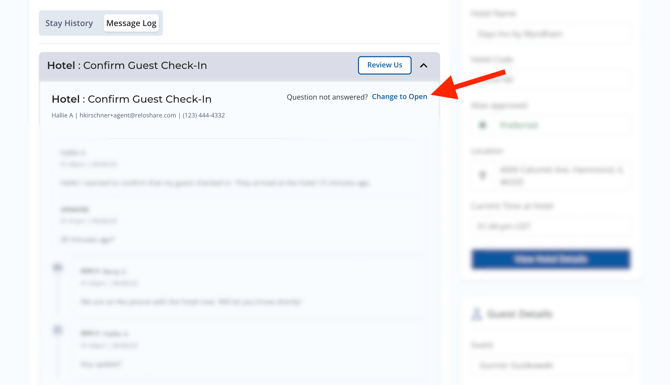
Your thread returns to the Open state, and our team will jump back in.
📝 Review a Resolved Problem
After we confirm the issue has been resolved, you can:
-
Click Review Us on the resolved thread
-
Review how our 24/7 team handled the issue
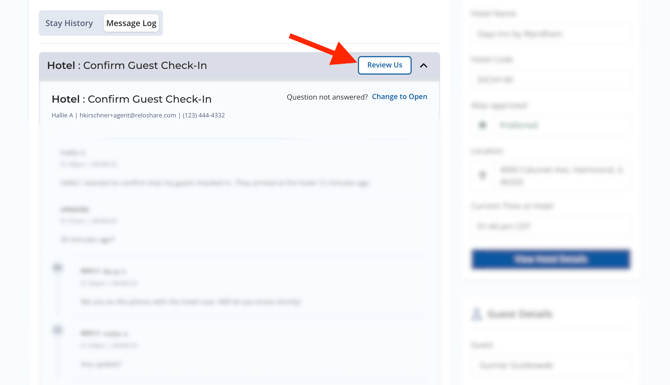

We take your feedback seriously and use that to improve our operations.